
As of 12/31/2015 we have added an API Connection from IDXBroker.com to automatically fetch your "Featured Listings". The purpose of this feature is to prevent the need to enter your own personal listings into the Properties section of Realvolve. While it does NOT bring in ALL data from your MLS into Realvolve, it does bring in the basic data and photos.
The way this works is that you can enter your IDXBroker API Code into Realvolve and nightly it will bring in any new properties that you personally have listed which are ACTIVE or update any ACTIVE properties that changes have been made.
Follow the steps below to connect your IDX Broker Account to Realvolve:
1) Login to your IDXBroker Account and click on the API Control link on your dashboard to display the API Key Control screen.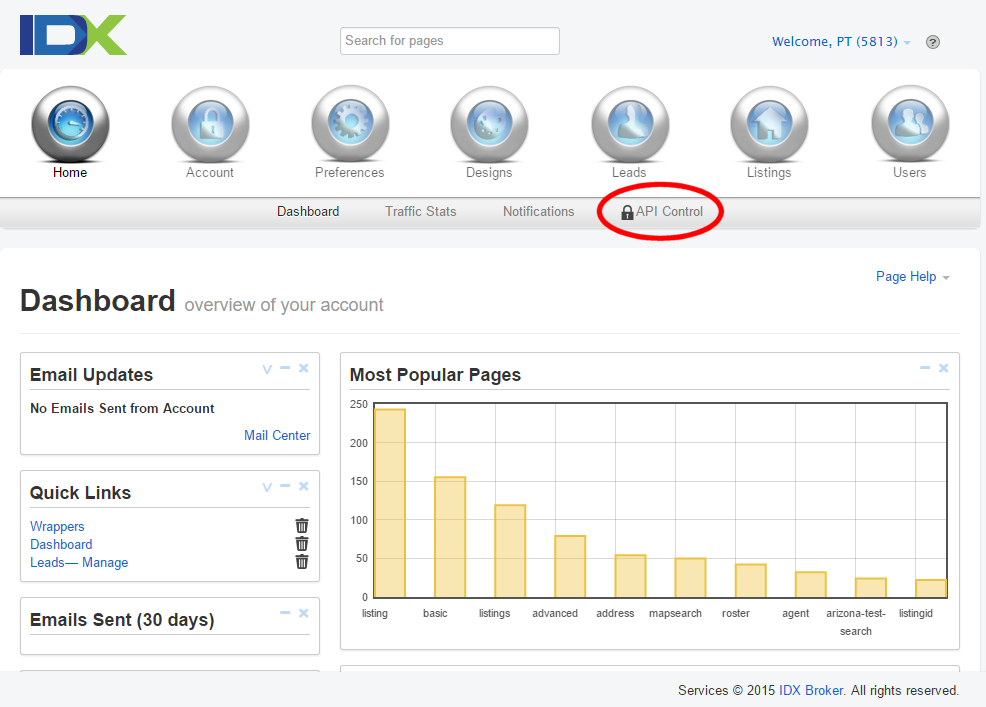
2) Highlight and Copy the Account API key to your clipboard. If you ever revoke this key or assign a new key you will need to copy the key again and paste it into Realvolve so the API Connections can be made.
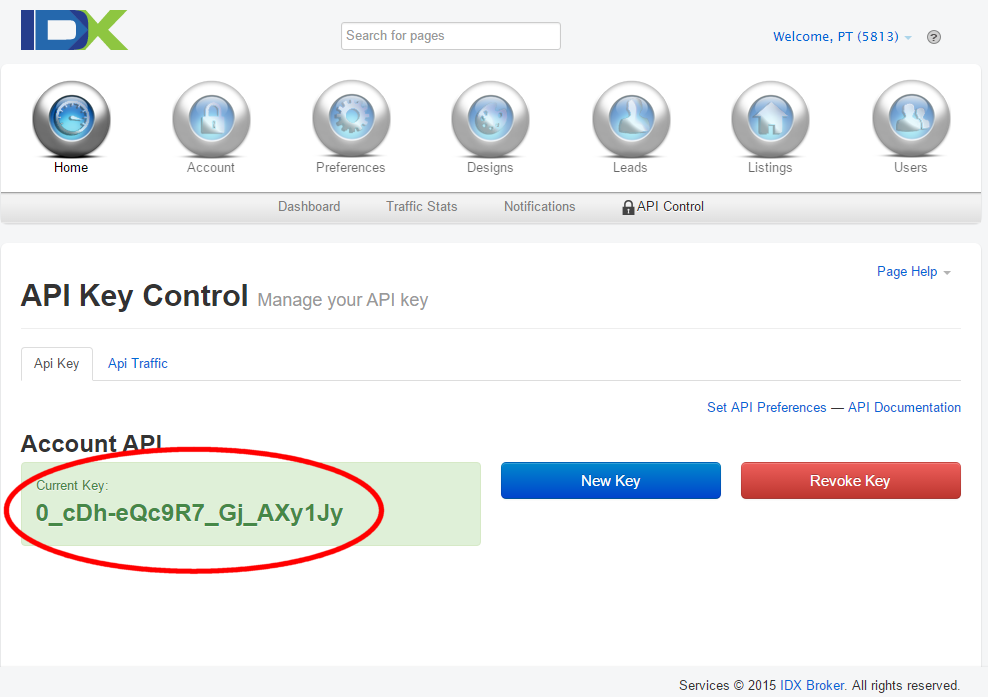
3) Go into your Realvolve Account and choose Settings > Integrations.
Paste the IDX Broker Key into the field provided then turn ON the Auto Fetch switch. Once the information is entered and updated then a [Fetch Properties Now] button will display to download the properties immediately.
Once the process is complete, you will find the Active Listings in the Properties section of Realvolve.
Note: NEWLY downloaded properties will have 2 TAGS: "IDX Broker" and "New IDX Import" - we recommend searching for new properties using the "New IDX Import" tag and edit it for any missing data including list date/expiration date as well as Seller information etc. Once you have made the changes then remove the "New IDX Import" tag so you can easily locate any newly added properties in the future. Leaving the "IDX Broker" tag will allow you to know it came from IDX Broker in the first place.
Note: we will be adding the ability to automatically start workflows on newly added properties also but it was not available at the time of this update.
Basic Property Information should import quickly however the Primary Photo and Additional Photos may take a little time to update.
Also, if you have your Properties saved in a CSV file, you can import them by following almost the steps as importing your Contacts! The only difference is to set the Record Type to Property, rather than Contact.